Asus ProArt Mouse MD301
About
Overview
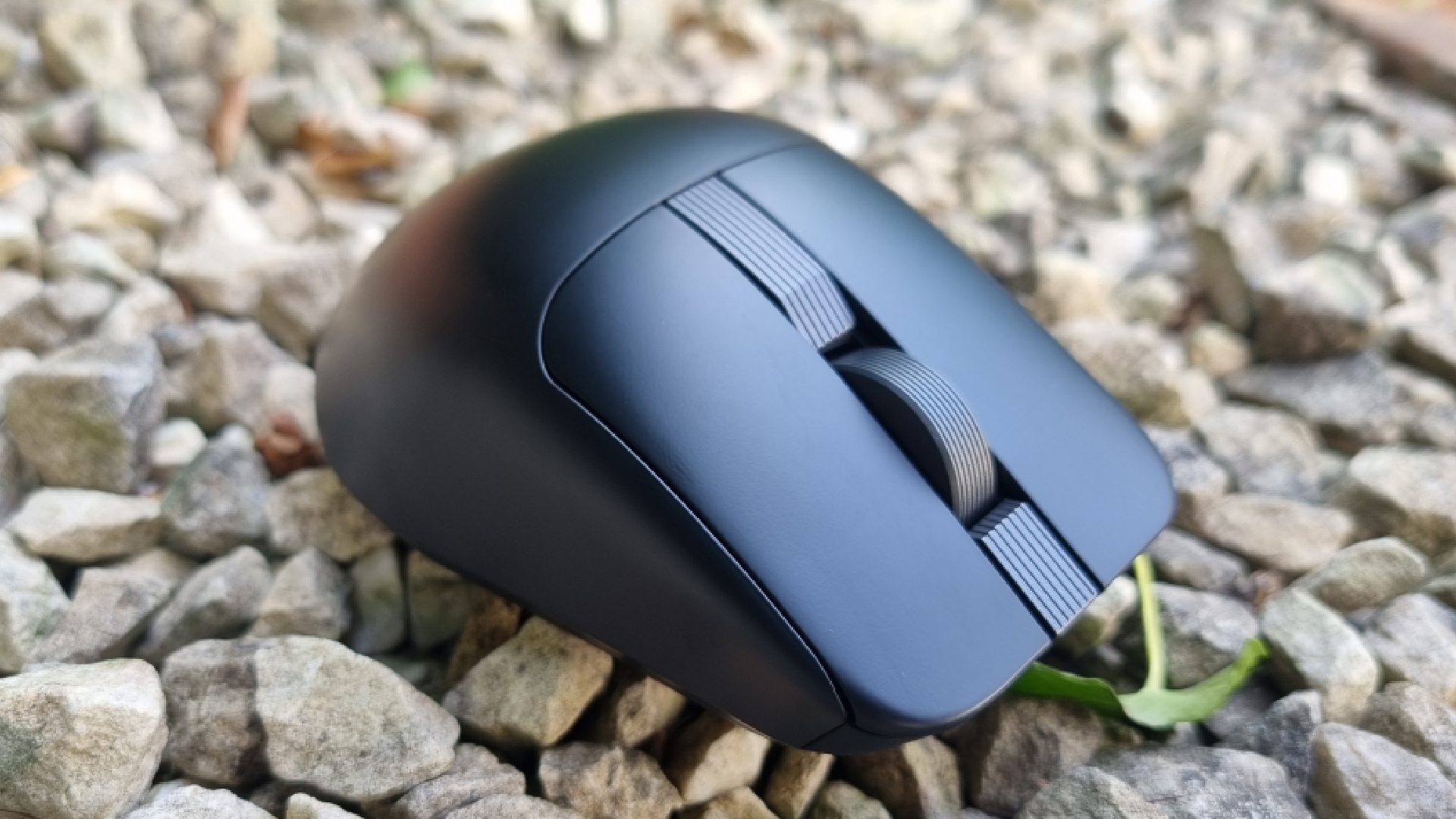
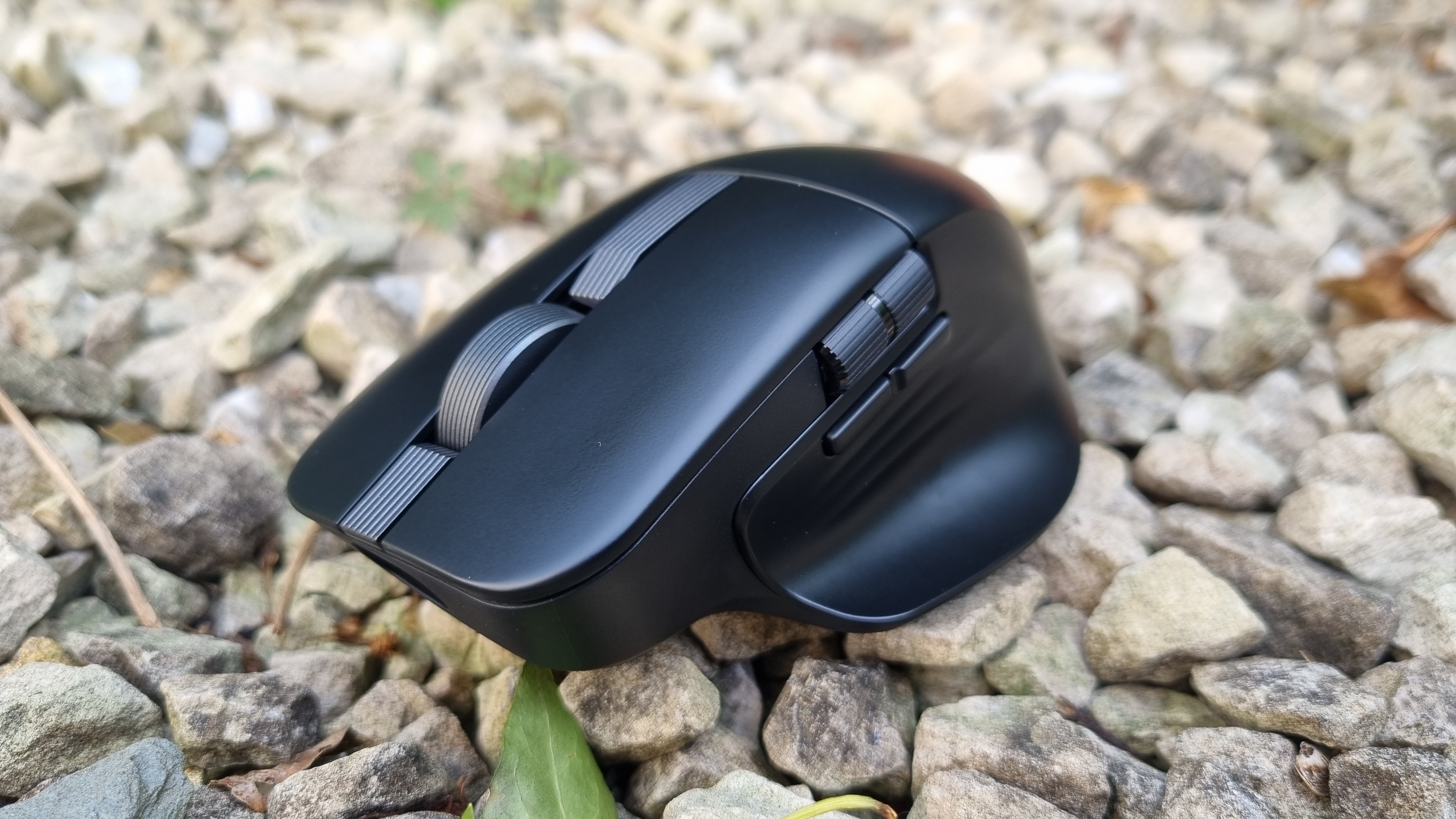
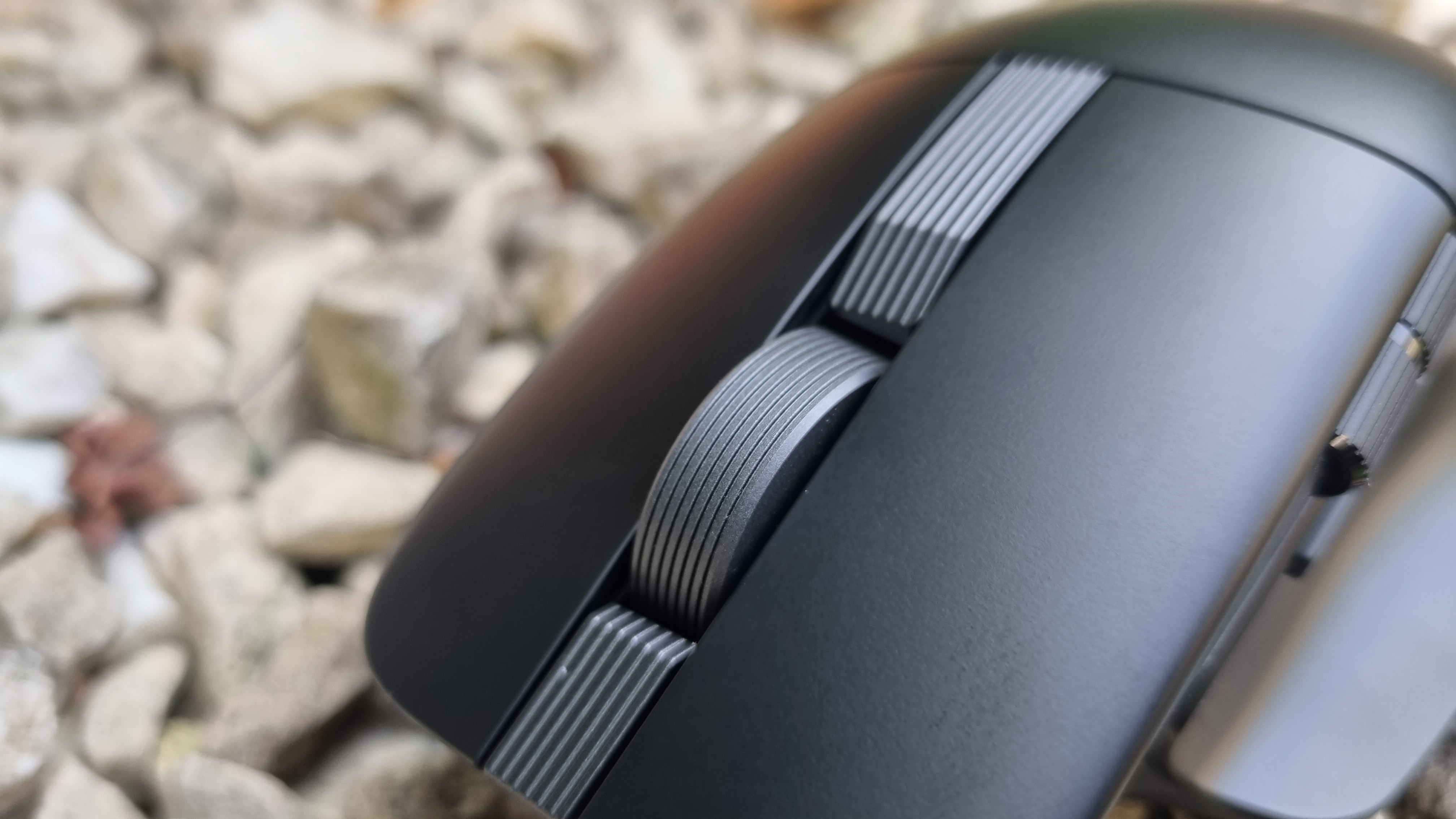
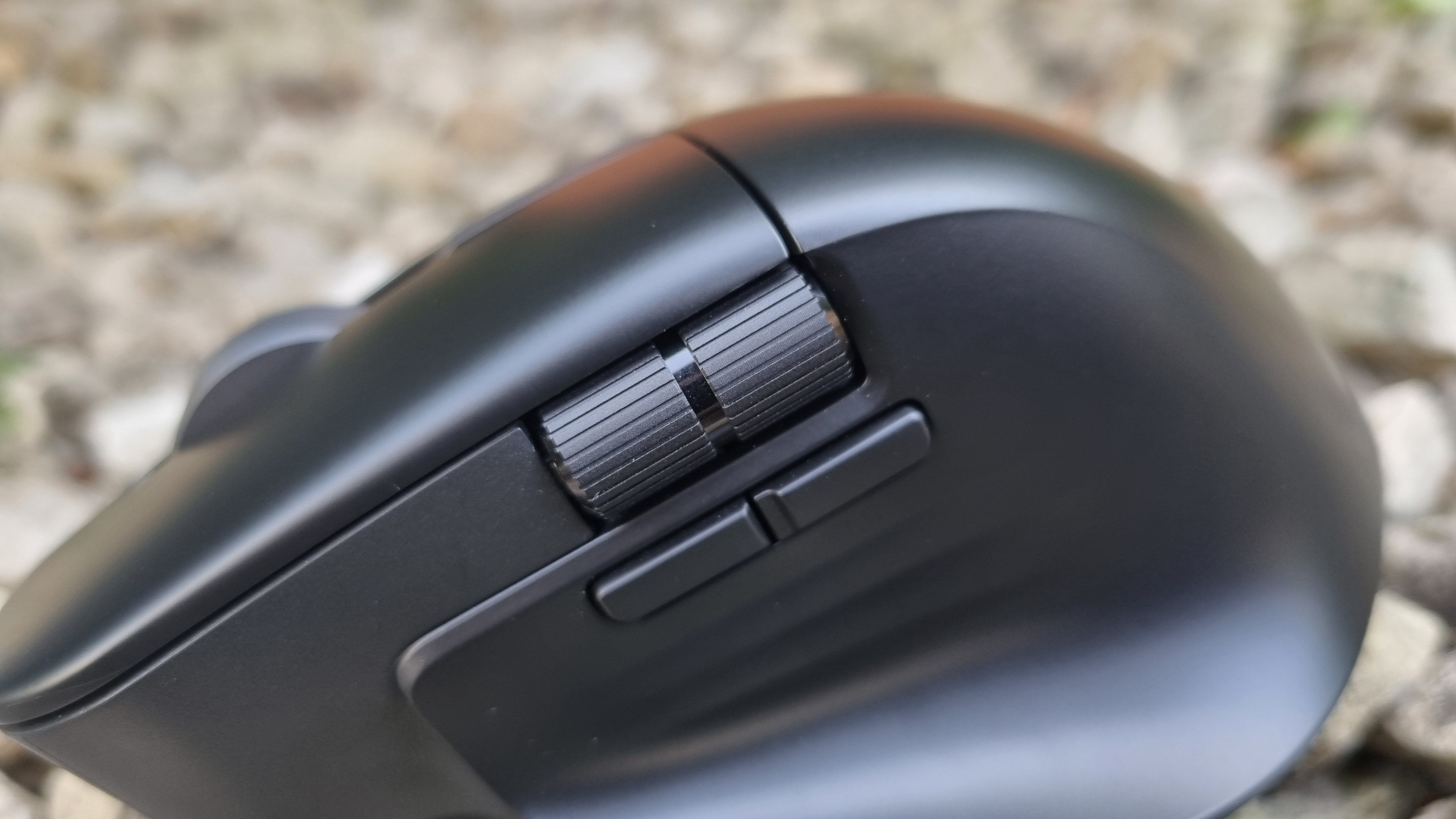
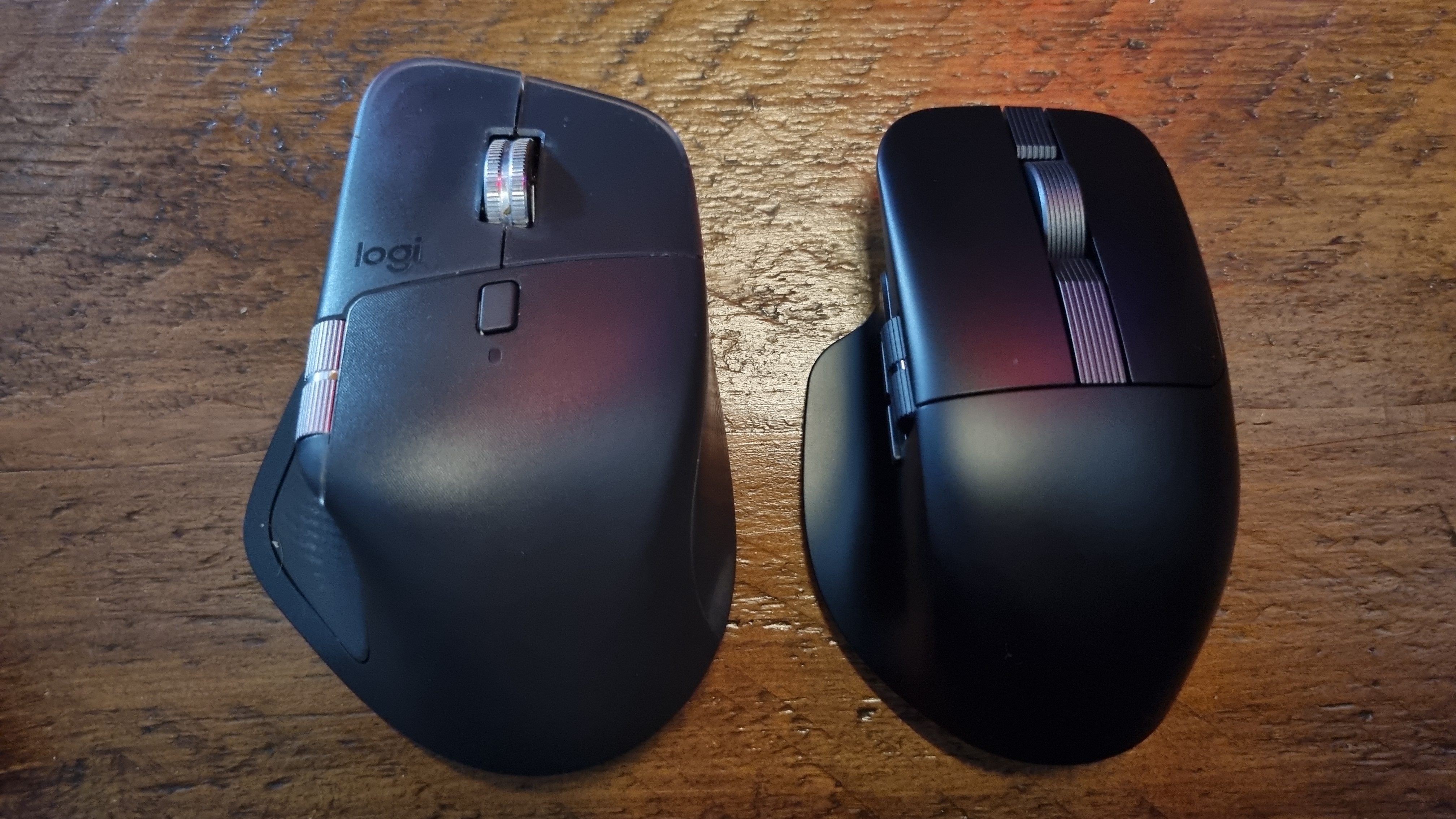
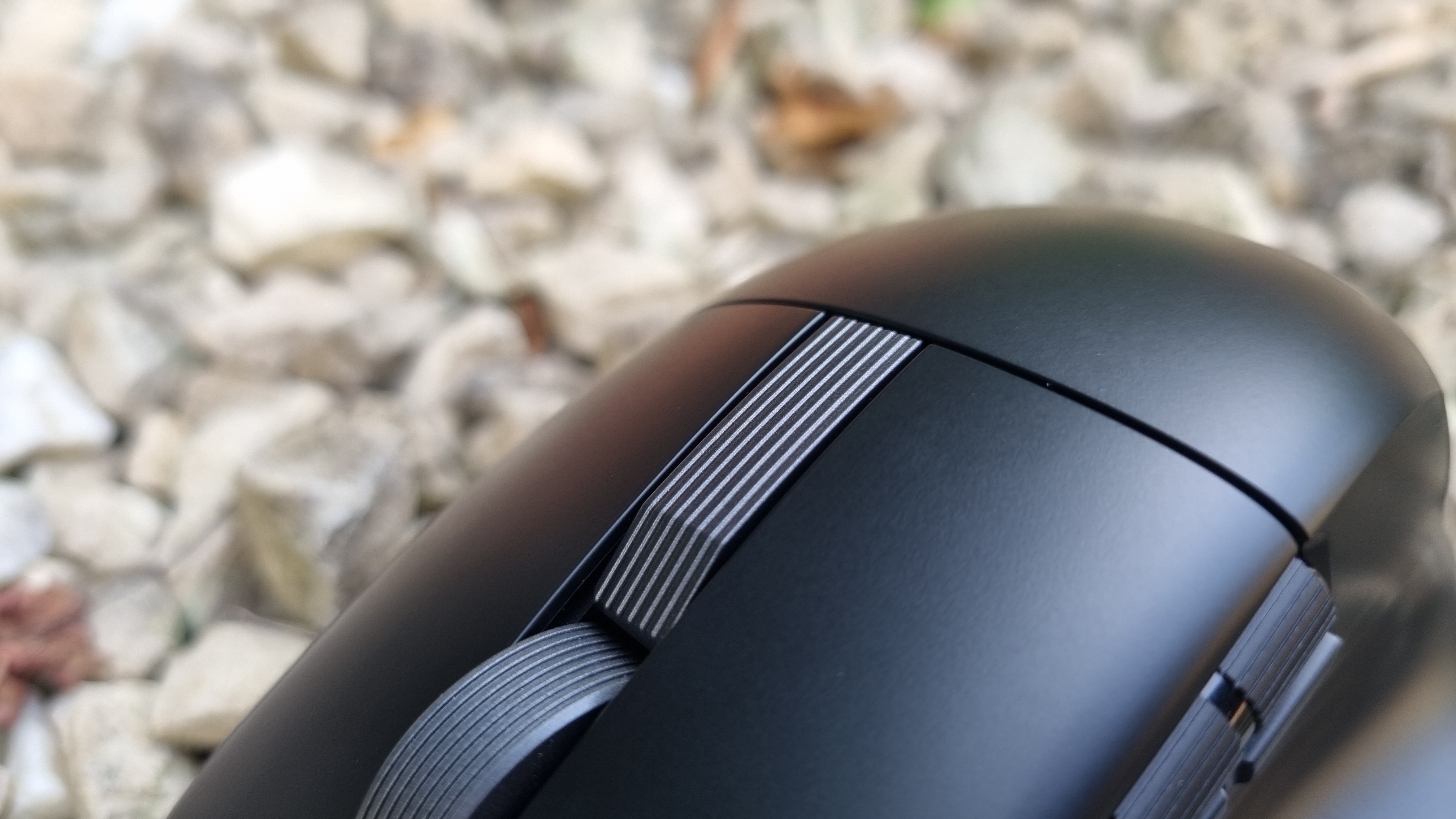
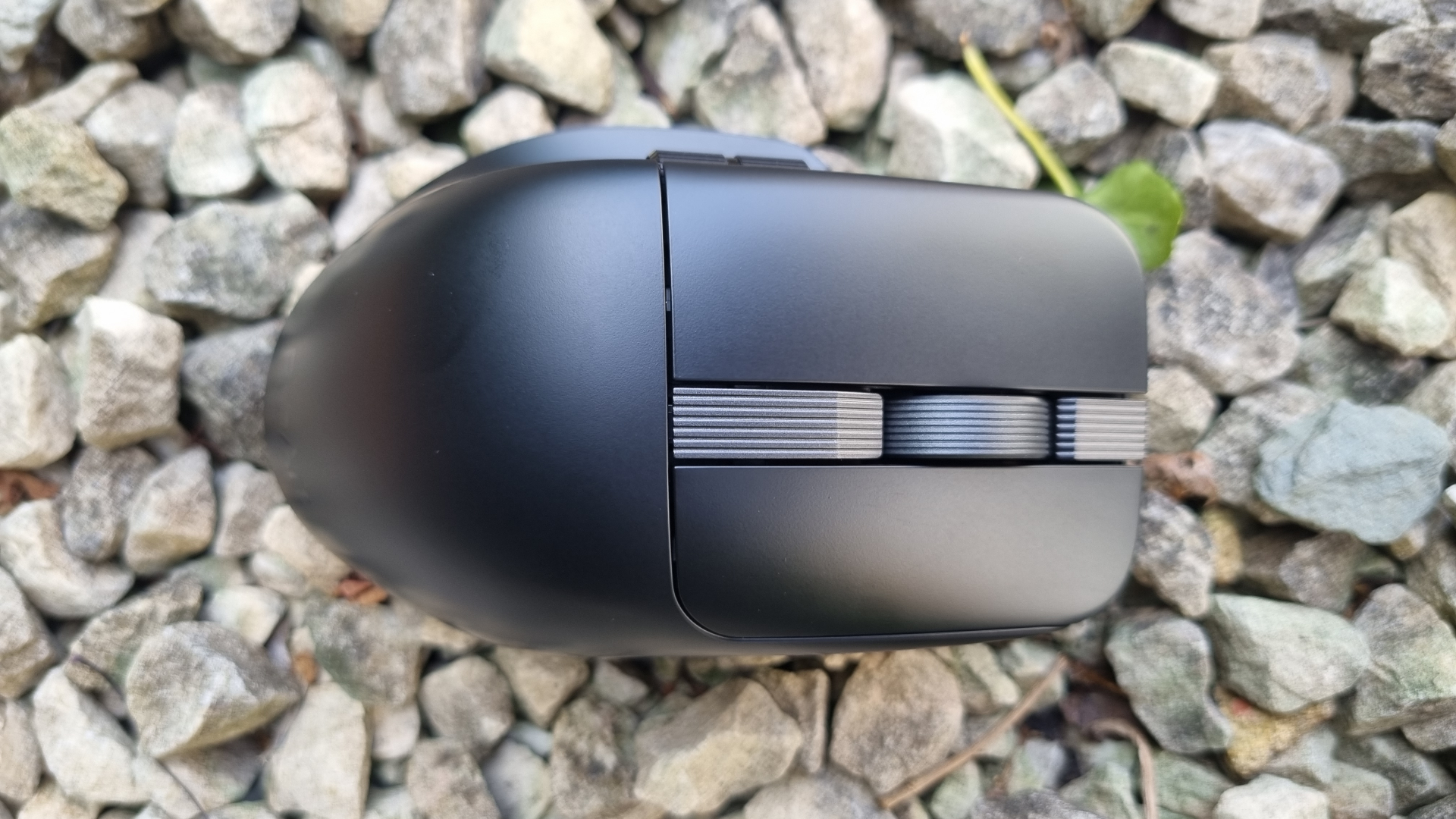
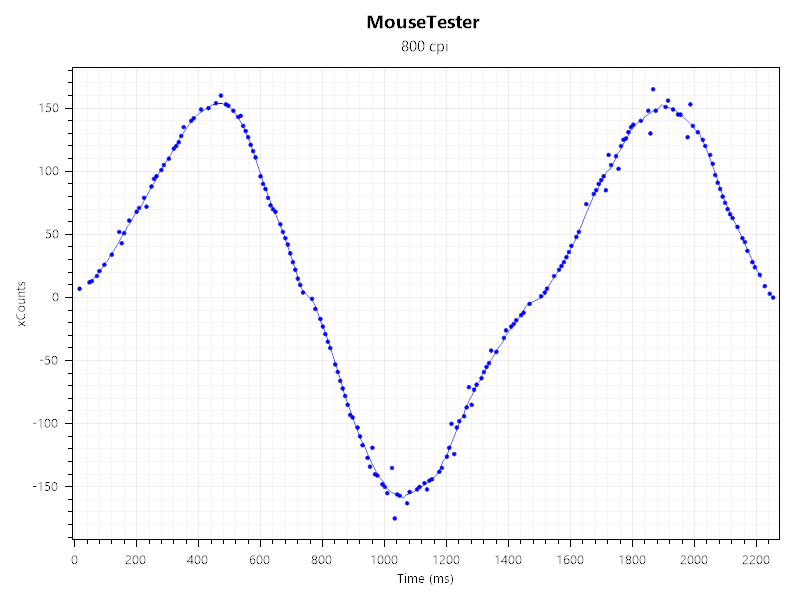
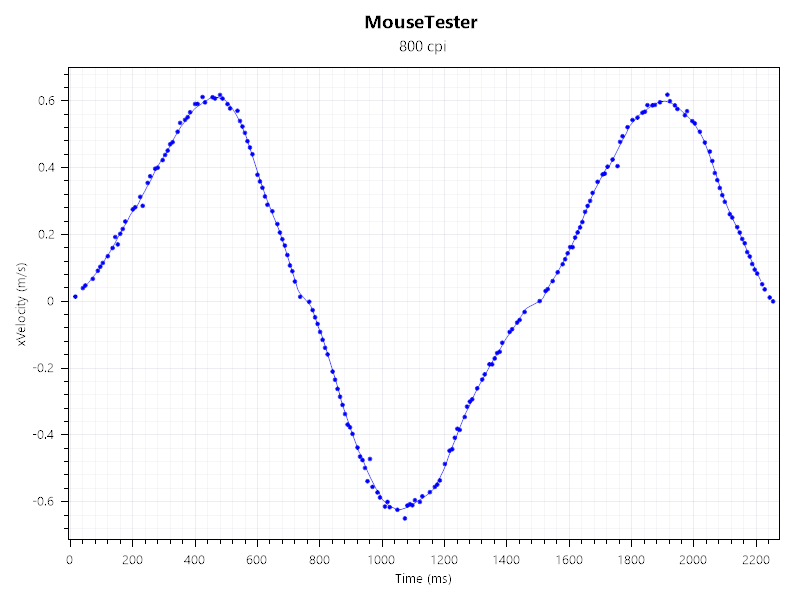
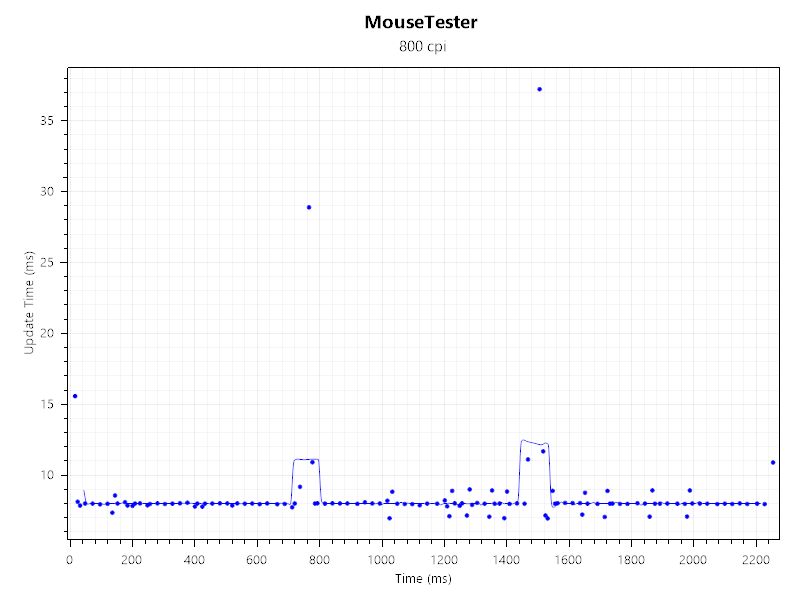
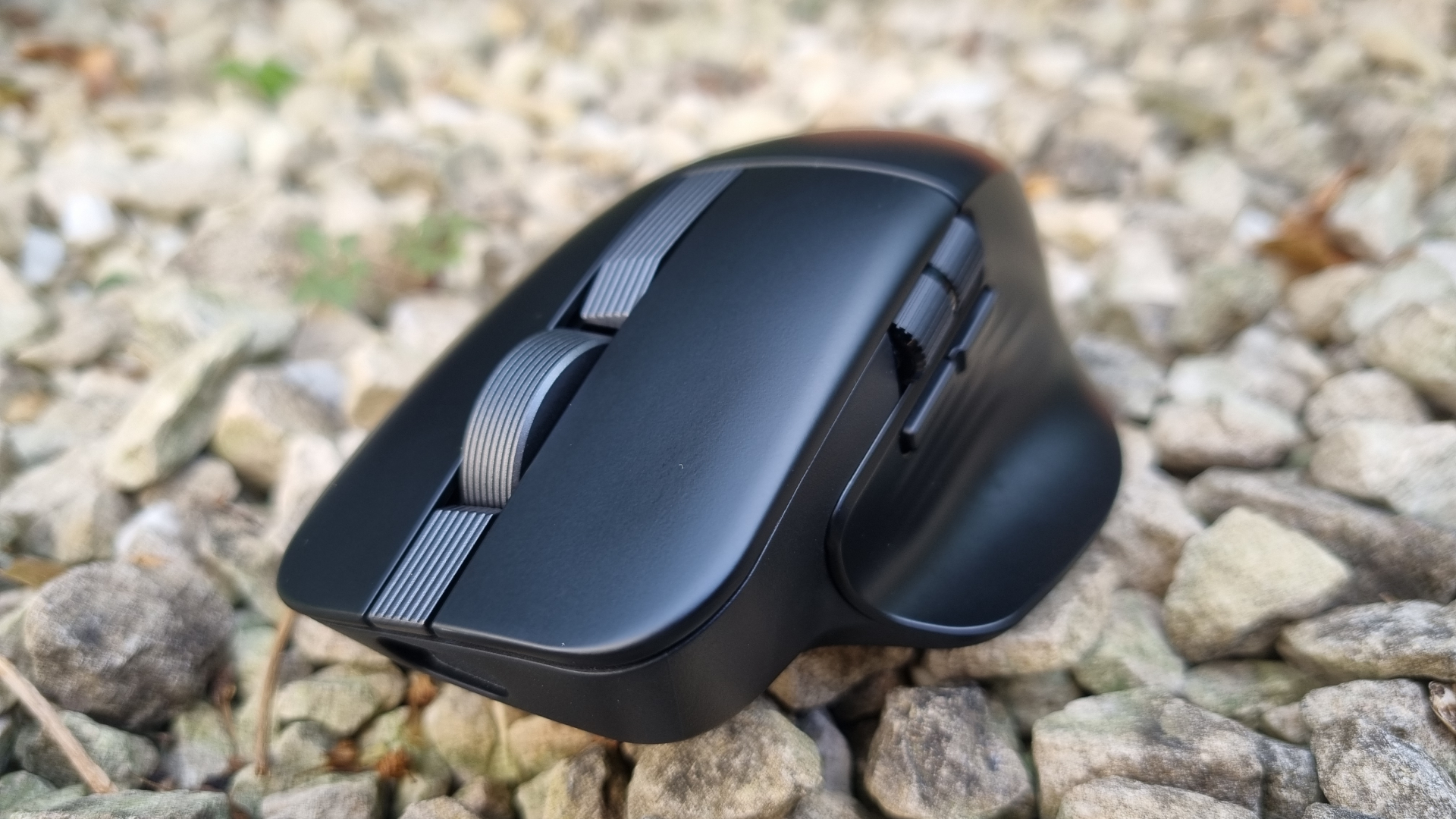
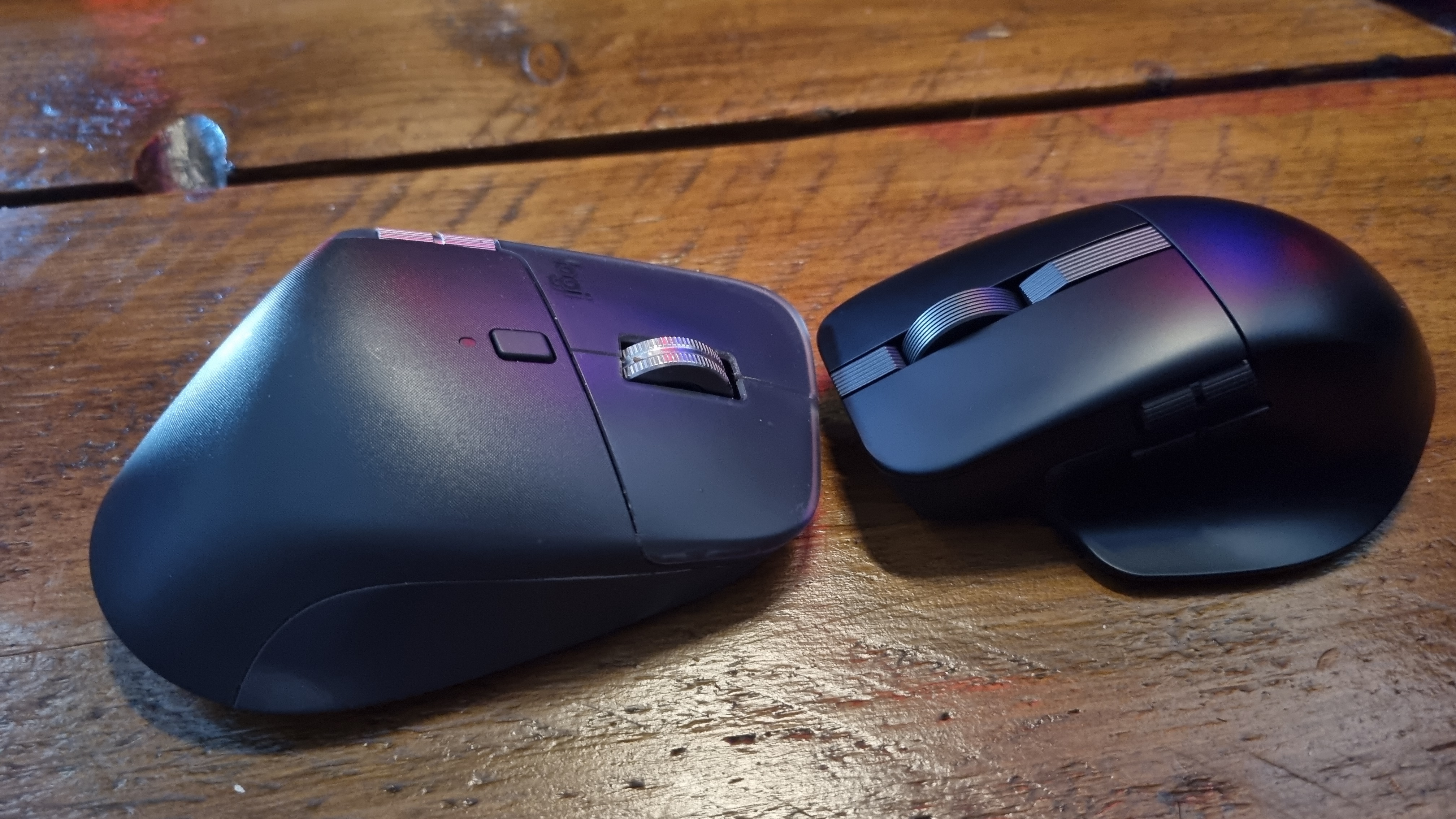
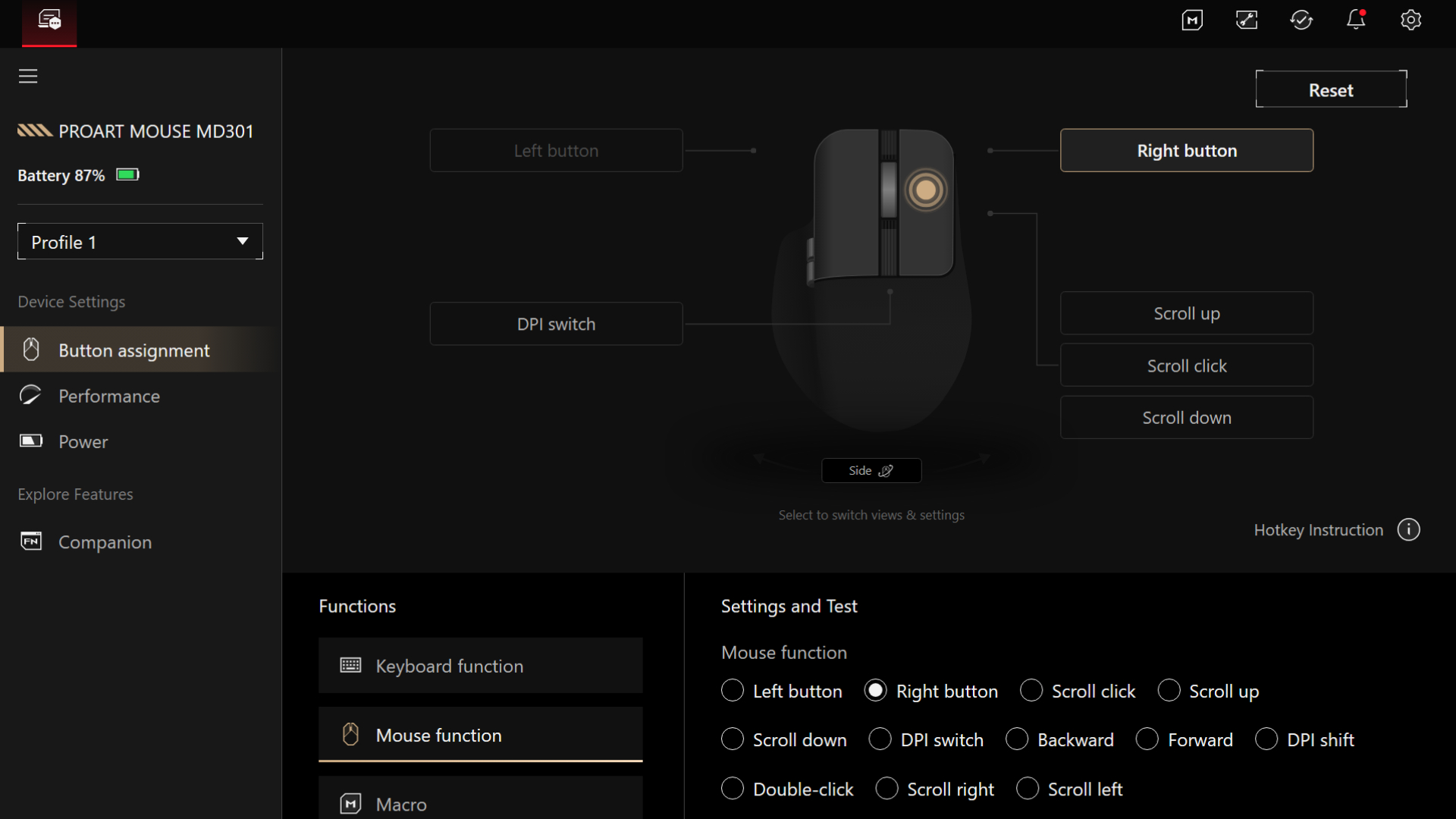
The Asus ProArt lineup is, in essence, the company's range of fancy PC products for creative professionals—and my goodness does it contain some nice-looking stuff. Which is why I jumped at the chance to test out one of the latest additions, the Asus ProArt Mouse MD301. It's certainly a handsome squeaker, designed to provide a subtle, refined, ergonomic option for those who have some serious work to do. It's all business, this mouse, and there's something desirable about a design that eschews gamer-like frippery and instead aims for a more executive flair. It's also customisable, in the sense that you can remove its main button switches for something more serene, or more clicky. There's also a horizontal scroll wheel, à la the Logitech MX Master range, which feels beautifully dampened. Really, most of the controls here are of the premium, well-thought-out sort, and that's very pleasing to see. However, this $100/£105 professional rodent has the odd quirk that gives me pause. The side buttons are a touch flimsy. The thumb rest is slightly small and a little awkward. I've also had the odd connection issue, and the software feels like an afterthought. There's a lot to like about the MD301. But as a long-term tester of the Logitech MX Master 4, I can't help but feel that if you're going down the professional ergo mouse route, it's the better buy of the two. The ProArt MD301 is a lighter, leaner attempt at an ergonomic mouse with many admirable qualities, but it drops the ball a little too often to give it my full seal of approval. ✅ You want a smaller, lighter MX Master alternative: The Logitech MX Master 4 is an ergonomic, professional-focused mouse with plenty of features, but it's very heavy. The ProArt MD310 is much lighter on its feet. ✅ You're an admirer of subtle design: The ProArt MD301 is a refined piece of engineering and wouldn't look out of place on a CEO's desk. ❌ You're after ultimate comfort: Despite being an ergo mouse, the MD301 isn't exactly plush. It's far from uncomfortable, but the thumbrest in particular feels a little meagre for all-day-long professional use. ❌ You want top performance: The sensor is… fine. Perfectly usable. That being said, this is a $100 mouse with fairly low-spec internals, and you can get much more performance for less. Asus ProArt MD301 Type Ergonomic mouse Max polling rate 1,000 Hz Max DPI 8,000 Battery 800 mAh Weight 99.7 g Connectivity 2.4 GHz via included dongle, Bluetooth Buttons and controls Six programmable buttons, two scroll wheels Price The Asus ProArt Mouse MD301 is an ergonomically-shaped mouse that feels a lot smaller than your average ergo squeaker, coming in at 114.8 mm long, 75.2 mm wide, and 46.8 mm tall. Sit it next to a Logitech MX Master 4, and it looks positively tiny. It's also cheaper, coming in at $100 compared to the Logitech's $120 MSRP. It's got six programmable buttons, including all the usual suspects. A left and right click, a middle scroll wheel click, two side buttons, and a hidden DPI button underneath a ridged plastic surface integrated into the chassis behind the wheel. It looks, in many ways, like a default mouse—albeit with some subtle ergo touches Oh, and it's also got a horizontal scroll wheel mounted to the left-hand side. Logitech really changed the game with the old MX Master 3S design, didn't it? Another interesting feature to note is the switches underneath the left and right buttons. By default, the ProArt MD301 comes with two (deep breath in) TTC E169-60BB0G0 (80M) units, but these push-fit socketed models can be pulled out and replaced with supported TTC, Omron, and Kaith units, which Asus has handily listed here. The scroll wheel has a party trick, too, in the form of Asus' SmartShift tech. This allows for precise, clicky control when spun slowly, and a free-wheeling action when you spin it at an appropriate speed. It's a lot like Logitech's magnetic solution on paper, but feels quite different. Spin the wheel at high speeds, and you can still feel it notch underneath your fingertip, albeit very quickly. Whereas Logitech's infinite scroll feature frees the wheel up with a glass-like, smooth action, the MD301 has a tendency to keep some tactile feedback in play, which makes it easy to stop at a defined point with precision. Asus says the MD301 has up to 180-day battery life, and can gain eight hours' worth of charge in a single minute over its USB Type-C connection. Speaking of which, it also comes with a braided Type-C to Type-A cable, and a small USB Type-A dongle for wireless connection. Bluetooth connection is also supported. Sensor-wise, this Asus squeaker makes do with an 8,000 DPI optical unit, which, in combination with its 1,000 Hz maximum polling rate, is unlikely to set gamers' hearts a-fluttering. Still, the MX Master 4 does just fine with a similar sensor (and a much lower polling rate), so it's not unsurprising for a work-first mouse. It's also a fair bit lighter than Logitech's latest ergo effort, tipping the scales at 99.7 g compared to the MX Master 4's 150 g bulk. The first thing I noticed about the MD301 is its diminutive proportions, especially when sat next to the MX Master 4. It's a lot narrower, with a much smaller thumb rest. However, it's got a wider top "hump", which feels good underneath my palm. Switching between the two, it's clear that the Asus is designed to rotate your hand over to the right side more drastically than most, although at nowhere near as extreme an angle as something like the Keychron M5. It doesn't feel aggressively ergo, though. More like a slightly chonkier gaming mouse with some interesting quirks. Clicking and spinning my way around the controls, I've been continually impressed by the effort that's gone into the switchgear and material choices. The left and right switches have a very positive click action, and well-weighted buttons. If anything, I could stand for it to be slightly heavier, in return for better side buttons and a bit of extra room for my thumb. The scrollwheel feels notchy yet free-flowing in all the right ways, with its clicky, fast-speed scroll being something of a highlight. The same goes for the horizontal wheel, which is heavily dampened and weighty underneath my thumb. Nice. I'm also a big fan of the smooth outer coating, which has a silky quality that feels rather pleasant underneath my fingertips. It's slightly fingerprint-prone, but no worse than any other black gaming mouse I test these days. The DPI switch is hidden underneath a ridged plastic insert that runs down the middle of the design, and provides a small moment of delight when you realise it's exactly where you expect it to be, but tastefully obscured. This is a classy mouse. A device for grown-ups. A refined rodent, if you will. The only real ergonomic drawbacks come in two forms. One, the left-side thumbrest is quite small, and dips inwards. Using the MX Master 4 on the daily, my thumb has become accustomed to lolling on its own throne-like protrusion of silicone—whereas here it needs to tuck itself into a diminutive (and firm) plastic seat. My digit has become lazy, it seems, and has a tendency to want to fall off. And two, the side buttons don't feel as high-quality as the rest of the unit. They're perfectly functional, but sitting as they do beneath a gorgeously weighted horizontal scrollwheel, the contrast is immediately obvious. They're simply "fine," while the rest of the controls are pretty excellent. Overall, though, the ProArt MD301 is an impressive-feeling device, especially given its relatively low weight compared to its chassis size and ergo design. If anything, I could stand for it to be slightly heavier, in return for better side buttons and a bit of extra room for my thumb. Given this is an ergo mouse with a relatively modest sensor, it would be unfair to expect Razer Viper V4 Pro-like performance or tracking ability from the MD301. Lo and behold, it's not the sharpest-performing rodent on the block. Still, the sensor tracks well enough for work and light gaming usage, as shown by the MouseTester charts below. I have, however, experienced the odd connection drop out. This has manifested as a very occasional half-second pause, and has happened several times during my week-long testing. I've got a lot of 2.4 GHz wireless devices plugged into my machine, and several more around my front room, so it's possible that the dongle here is slightly interference-prone—although I haven't been able to pin down the exact cause. I have two other gaming mice plugged into this PC at all times (the MX Master 4 and the Razer Cobra Hyperspeed), and neither have had any connection issues. I tried unplugging both mice to see if it fixed the problem, and managed a few days of solid connection—before again experiencing a very quick pause. I also had one connection pause while using the mouse with a gaming laptop I'm currently testing, so it doesn't seem to be specific to my main machine. The problem is so intermittent as to be barely noticeable, but there's something in this room the MD301's 2.4 GHz dongle doesn't appear to like. I love the ProArt MD301's aesthetic design. It's somehow utilitarian, slightly luxury, handsome, and hardly noticeable all at the same time. The ridged plastic vertical insert framing the scrollwheel is about as simple as design touches come, and yet adds a certain something that both feels good underneath your fingertips, and looks ever-so-slightly special on your desk. Do I miss RGB lighting, or a touch of gamer flair? Not a bit of it. This mouse is all business, and that by itself makes it stand out. The ProArt MD301 connects to Asus Gear Link, a web-based app that allows you to adjust the DPI, polling rate, and button response settings within a browser. In order to tweak macros and use some of the features, though, you also need to install a companion app as an extension, which somehow feels like the worst of both worlds. Pick either a web app, or installed app, Asus. Having one in order to properly use the other feels like an extra level of annoyance. The web app itself has the odd quirk, too. I regularly split my 32-inch, 4K screen into two side-by-side browser windows, but the Asus app complains that it doesn't have enough room in one panel, suggesting I "switch to a larger screen." What do you want, a 49-inch ultrawide? There's an option to use it anyway, though that's a new one on me. It seems to scale the interface just fine if you override it, but it's a bit indicative of the software experience overall. Unfinished is the feeling I come away with. Still, early annoyances aside, the web interface works well enough. It's a bit barebones, though, and given the premium-feel of the mouse itself, it strikes as a clunky afterthought tacked on to what is otherwise a well-put-together package. At its $100 MSRP, I'd say the Asus ProArt Mouse MD301 is well-priced for its bracket. It's a chunk cheaper than the Logitech MX Master 4, and looks and feels like a premium mouse for more reasonable money. That being said, I can't help but feel you're getting a lot more for your cash with Logitech's offering. It's got a more comfortable thumb rest, near-silent switches as standard, and a set of controls that can match (and occasionally beat) the Asus in terms of feel. And, it must be said, the Logitech software experience is a lot more refined. Plus, I've not experienced any connection pauses with the Master in many months of everyday usage. Which puts the ProArt squeaker in an odd spot. It's a lot lighter than the Master 4, which makes it more suitable as a gaming mouse. But it's still got an ergo-spec sensor, so I doubt many will be buying it for its gaming performance chops. And while it's a good-looking object that would suit the *loudly coughs* executive-ergo-mouse-using-professional, I can't help but feel there are enough hang-ups here to cause them to sniff into their yuzu-infused lattes. It's a good effort from Asus, and a mouse with many likeable qualities. However, the quirks slightly outweigh the advantages, and as a result, I struggle to recommend it over the competition.Buy if...
Don't buy if...
Asus ProArt Mouse MD301 features

Asus ProArt Mouse MD301 ergonomics
Details
Asus ProArt Mouse MD301 performance
Asus ProArt Mouse MD301 aesthetics
Asus ProArt MD301 software
Asus ProArt MD301 value

Source
Originally published at www.pcgamer.com.
Related Articles
- This month's Humble Choice is worth a look if you like RPGs, Zelda-likes, fast-paced shooters, or violating people's civil rights
- Marvel Rivals' Season 9 update will affect 80% of its roster as NetEase throws balance out the window for a more 'fun' approach to the game
- This Chrome extension hides 'knockoff' brands on Amazon: 'Sorry to brands like WNPETHOME, EHEYCIGA, YXY'